
Microsoft Word vs Google Docs for Content Editing

Both Google Docs and Word have features designed for copyediting; however, although Google Docs has superior sharing capabilities, Word has the better user interface (UI) when it comes to using Track Changes.
Microsoft Word can be described as the original editing software; however, it has a number of disadvantages. It is often perceived as outdated, slow, and cumbersome to use. One of the biggest disadvantages of Word, in my opinion, is that its shareability is not as effective as that of Google Docs.
When it comes to copy editing or content editing, the most important feature is Track Changes. This feature allows you to see and follow changes made by various writers and editors in a document. Despite its reputation for being slow to load, difficult to share, and old-fashioned, Word remains a useful tool for proofreading and editing documents, especially academic papers.
This is particularly true for Track Changes, which is crucial for copy editing and proofreading. It allows the author to see all the changes made by the editor and gives the author the chance to either accept or reject these changes.
In addition to this, it is also quite useful in making changes to manuscripts during the peer review process after submitting to a journal and for effective collaboration among scholars working on the same manuscript. It is also used for content editing of both SEO blogs and news articles before they are published online.
In this article, I will compare how Track Changes works in Word compared to Google Docs and give a general comparison of the effectiveness of these tools as copy editing software.
 |  |
How Track Changes works
But before we begin with our comparison, let us first explain what Track Changes is and how it works. Track Changes is a native program feature in Microsoft Word that allows viewing of changes made in the text and formatting of a document. Its main advantage is enabling collaboration between the author and editor, as well as among colleagues.
We can divide editing with Track Changes into two industry categories: academic editing and content editing. Academic editing is the more traditional use and focuses on the correction of academic documents such as research papers, theses, and journal papers. On the other hand, content editing refers to editing content meant for blogs and newspaper articles
In general, Google Docs is ideal for content editing for blogging and publishing articles online, whereas Word remains the best choice for editing academic documents. The table below provides a comparison of the two tools.
Feature | Microsoft Word | Gooogle Docs |
Primary Platform | Desktop (Windows and Mac) |
|
Pricing | Available through Microsoft 365 subscription | Free with a Google account |
Offline Access | Fully functional on desktop by default | Offline mode needs to be enabled first |
Track Changes | Clean UI interface | Messy UI interface if the changes or corrections are too many (referred to as "Suggesting" mode) |
Formatting | Advanced formatting features on desktop | Limited formatting features |
Real-Time Collaboration | Real-time collaboration only possible through OneDrive | Real-time collaboration is a native feature of this software |
Summary | Word is ideal for formal and academic documents because of its superior UI for Track Changes, whereas Google Docs is ideal for content editing, blogs, and online content because of its easy and convenient collaborative features. | |
Track Changes in Word
Let's begin with how to turn on this feature in Word. To turn Track Changes on, you should go to the Review tab on the Word ribbon.
Go to Review > Track Changes.
If Track Changes is on, the section will be highlighted. The program shows deleted material as being marked with a strikethrough. However, added material is underlined. The program also allows you to highlight changes made by different authors with different colors.
Turning Track Changes off means that the section will not be highlighted. This signals that the program has stopped indicating or marking changes. However, the material that has been deleted through strikethroughs and colored additions will still be visible in the document.
Word allows you to accept and reject changes one at a time or altogether. The instructions below show you how. To reject changes one at a time, do the following:
Click at where the document begins.
Choose the Review tab and go to Changes.
Select Accept or Reject. As soon as you accept or reject changes, Word will automatically proceed to the next change.
Repeat until all changes in your document have been reviewed.

To accept all the changes at once, do the following:
Go to Changes on the Review tab.
Select one of the following options:
Select Accept All Changes in the Accept drop-down list.
Select Reject All Changes in the Reject drop-down list.

Track Changes in Google Docs
Track Changes in Google Docs is referred to as "Suggesting mode." At the top right corner of the Google Docs page, you will see three options to choose from:
Editing (with a pen icon),
Suggesting (with a comment bubble icon), and
Viewing (with an eye icon).
The screenshot below shows what this looks like:
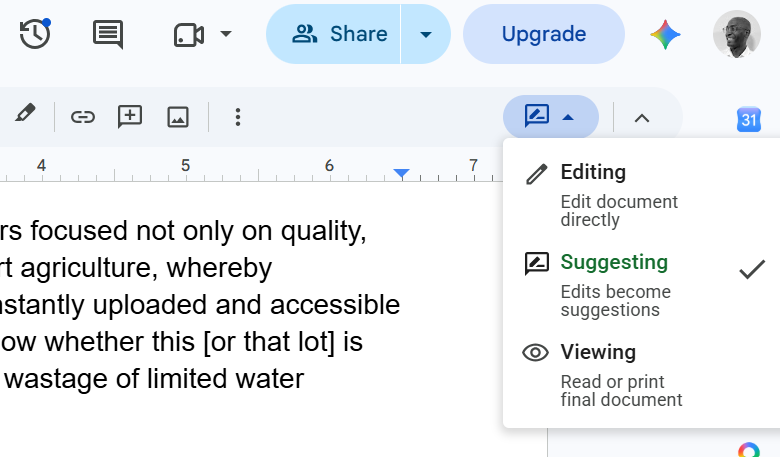
"Editing" means you can write on the document without leaving a history of all the corrections you make. "Suggesting" allows any corrections or changes you make on the document to be visible in colored text, with text that has been deleted showing as crossed out, similar to Track Changes in Word. Lastly, "Viewing allows you to see what the final version of the document looks like, assuming that all changes are accepted.
Which to choose?
Microsoft Word Track Changes and Suggesting mode in Google Docs both provide reliable support when it comes to editing. They are both cheap, efficient, and convenient.
Word Track Changes and Suggesting mode in Google Docs has the following benefits for copy editing and content editing:
It allows the author to accept or reject changes at their discretion.
It allows the author to see the changes made by the editor
It allows the content editor to leave comments for the author.
This is mainly because all the deletions and additions made in Track Changes are visible. Additions take the form of colored material, whereas deletions are highlighted as being struck through. Lastly, unlike Google Docs, the UI is cleaner and easier to follow. Google Docs can be effective, but any content editing or copy editing that requires a high level or high frequency of corrections means a user interface that is messy and difficult to follow.
However, in professional settings where the focus is on content for blogs and online articles and where team collaboration is a priority, nothing beats Google Docs.
How MA Editorial can help with editing your content
At MA Editorial, we prioritize the principle of making sure that writers have complete control over accepting or rejecting the changes we make to their manuscripts or content. This is why our content editing process relies heavily on using Track Changes in Word, whether it be in Word or Google Docs.
Before submitting your paper, you can review every change made to your document before accepting it. Completing and submitting your writing projects on time is a priority. We are a small team of editors experienced in content and academic writing. So, we know exactly what it takes to get your articles ready for submission or publication.
MA Editorial provides content editing and proofreading services that are:
More importantly, we are adaptable to your specific needs. | Get in touch with one of our representatives for help in editing your content We know what you want to say. We help you say it better. |
Our services don't just start with proofreading the final product. It also includes help from the very start, such as editing and double-checking your articles. Our editing and proofreading services include the following:
Human-based and non-LLM Content editing for blog articles
Content editing for white papers and user manuals
Substantive editing to improve the quality of your writing at the sentence level
Extensive commentary and recommendations to improve literature review, structure, and arguments
Proofreading to make sure your writing is grammatically correct with proper spelling and punctuation
So feel free to get in touch through our contact page here: CONTACT US AT MA EDITORIAL. Good luck with your writing!
Cite this MA Editorial article |
Antoine, M. (2026, September 28). Microsoft Word vs Google Docs for Content Editing. MA Editorial. https://www.ma-editorial.com/post/word-vs-google-docs |


